
Setting up Multi Factor Authentication (MFA/2FA)
Stay Secure with MFA (Multi-Factor Authentication)
To help protect your school account and keep our school network safe, we’re introducing something called Multi-Factor Authentication (MFA), sometimes called 2FA.
You’ve probably already seen this on apps like Instagram, Snapchat, or banking apps. It’s the extra step that helps make sure you are really the one logging in.
What This Means
When you log in to school systems from home or outside school, you’ll be asked to confirm your identity using your phone.
You’ll get a notification or code from the Microsoft Authenticator to prove it’s really you.
When you’re using computers inside school, you won’t be asked to confirm your identity every time but you’ll still need to set it up first.
What You’ll Need
A smartphone. Ideally your own, but you can use a parent’s phone if needed.
The Microsoft Authenticator app, which you’ll install during setup. If parents control the installation of Apps on their children’s devices, then please allow them to install this App.
Get Started
Follow the guide below, it only takes a few minutes and it keeps your account safe from hackers. Please read through it first before attempting to setup.
1. Install the Microsoft Authenticator App
-
On Android, download it from the Google Play Store.
- On iPhone, get it from the App Store.
Please ensure that it is the Official Microsoft Authenticator App as it won’t always appear at the top of the search results in the App Stores.
Make sure the app finishes installing before moving on. If the App asks to allow notifications and camera access then please allow these. You may also be prompted to use App Lock which will require you to use your phone unlock code, Face ID, Fingerprint Biometrics, etc to unlock the application and authorise authentication requests which adds an extra level of security.
2. Register Your Account
-
On a computer (not your phone), open https://myaccount.microsoft.com.
-
Log in using your school email address and network password. If you’re using a school computer, you’ll be logged in automatically.
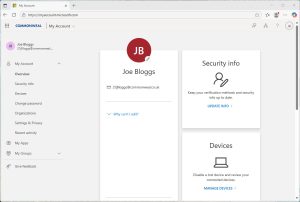
- Click Security Info on the left-hand side (if it doesn’t go there automatically).
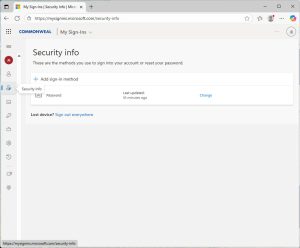
-
Select + Add sign-in method and you be prompted to install Microsoft Authenticator on your mobile device if you have not done already from Step 1.
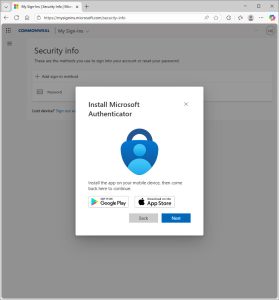
- Click Next and you’ll be prompted to set up your account in the app, follow the instructions.
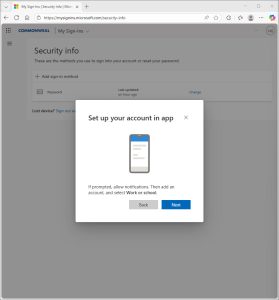
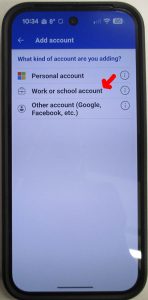
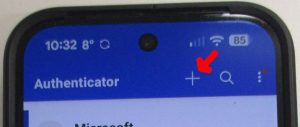
You may need to press the + in Microsoft Authenticator to add an additional account if you already have it installed.
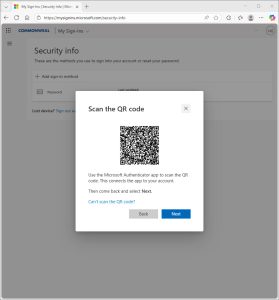
- Click Next and you will be presented with a QR Code to Scan in the App on your device. (Do NOT try to scan the QR Code in the picture below!)
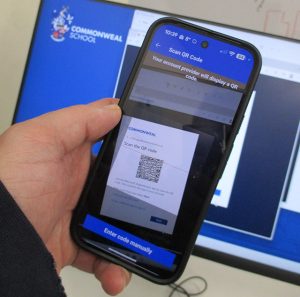
- One you have scanned the Code, your account will be added within the Microsoft Authenticator App, click Next which will start a test and you will be presented with a number on the screen, an example is shown below:
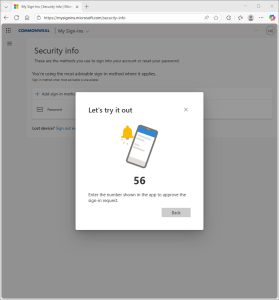
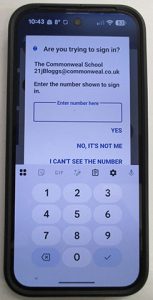
- The authenticator app on the phone will ask for this number, enter it and click YES.
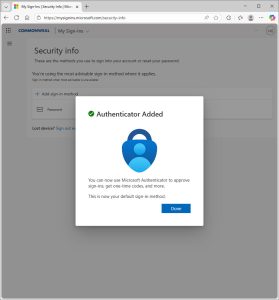
- You will then get a notification that your Authenticator has been added.
You may be prompted again by the Authenticator to go to the next screen. - You’ll now see Microsoft Authenticator listed under your Security Info.
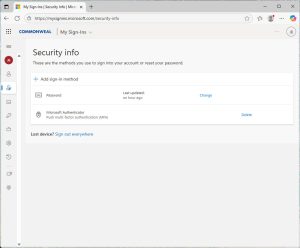
Tip: You can also add a backup method, like your parent’s phone number, to get codes by text if needed.
4. Using Microsoft Authenticator
When you log in to Commonweal resources from home, you’ll get a pop-up on your phone asking you to approve access.
- A number will appear on your computer screen, enter it in the Authenticator app.
- This only works if your phone has internet access.
If you don’t have a signal or Wi-Fi:
- Choose “I can’t use my Microsoft Authenticator app right now.”
- Then select “Use a verification code.”
- Open the app, find the Commonweal account entry where your one-time passcode is shown and type this in. The code changes every 30 seconds.
If You Change Phones
If you get a new phone, you’ll need to set up Authenticator again.
You can add your new device the same way, but you’ll need your old phone to approve the setup.
If you no longer have it, visit ICT Support (Room 115) and we’ll reset it for you.
Important!
You should only get Authenticator notifications if you’re actually logging in to school systems.
If you start getting pop-ups when you’re not logging in, do not approve them – contact ICT Support (Room 115) straight away, as your account may be compromised.
Need Help?
The ICT Support team runs workshops to help students set up MFA on their phones. Come to Room 115 for help or more information.