Booking and Using Parent Meetings
Please follow the steps below to set up your account and book appointments. If you have any issues, help is available at each step. Should you require additional help, please email: parentsevening@commonweal.co.uk.
Step 1: Receiving the Activation Email
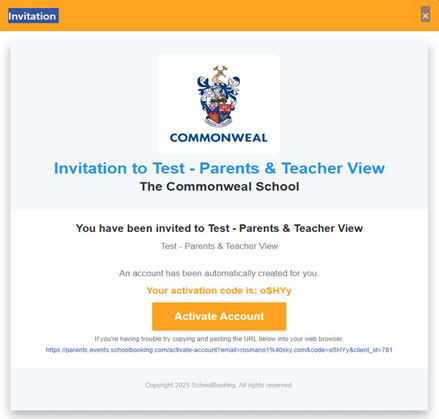
- When you first use Parent Meetings through School Bookings, you will receive an activation email. The email will contain an activation code. If the activation code does not work, click the link at the bottom of the activation email.
Step 2: Creating a Password
- Once you’ve clicked the activation link, you’ll be taken to the Create Password page. Simply enter a password of your choice and click Activate Account to continue.
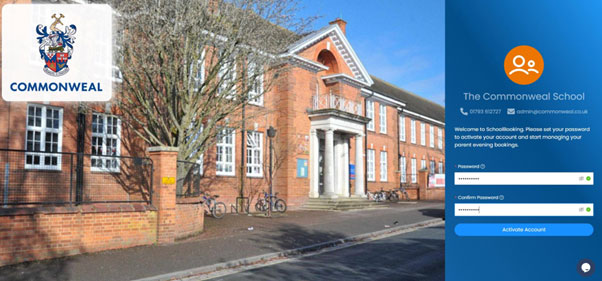
- If you need help, click the Support button in the bottom right corner of the page. This will take you to a support page with helpful guides to assist you. If you still need further assistance, please email parentsevening@commonweal.co.uk.
- Once you have received your activation email and created a password, you will not need to repeat this process for future Parents’ Evenings.
- For any upcoming Parents’ Evenings, you will receive an email with a link to make bookings.
You can either:
- Click the email link provided in the invitation.
- Go to the following website: https://parents.events.schoolbooking.com/ (which takes you directly to the Parent Meetings login page).
Step 3: Accessing Your Dashboard
- Once your account is activated, you will be taken to your dashboard.
- Any available Parents’ Evening sessions will be shown here.
- Please be advised that the parents’ evening sessions will only be visible once the booking is live.

Step 4: Making Bookings
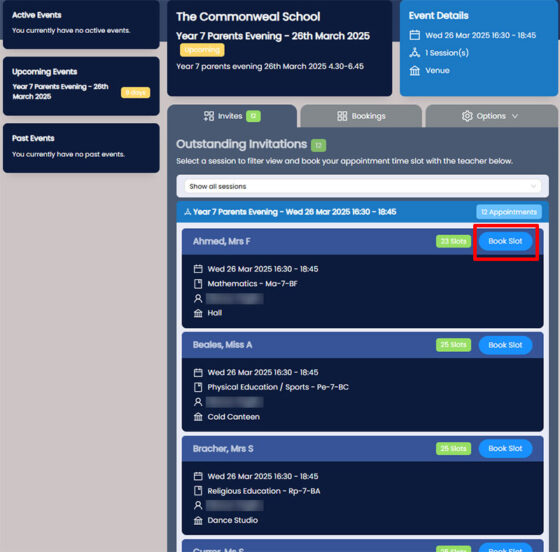
- In the Outstanding Invitations tab, scroll down and select the Book Slot button next to the Teacher you wish to make a booking for.
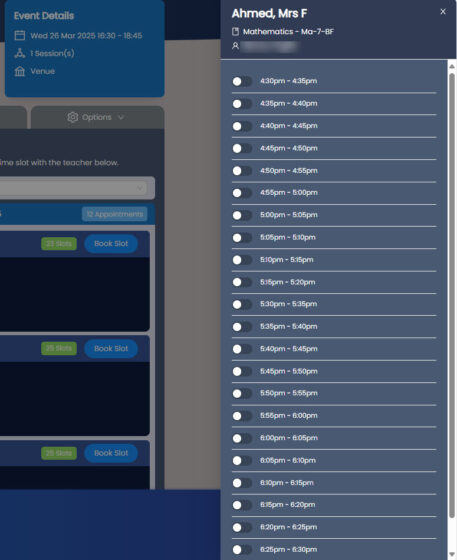
- When clicking the Book Slot button, a list of available time slots will be shown. Select the Time slot you wish to book for. Once selected, the booking will be made immediately.
- Scroll down and make the additional bookings with other teachers as necessary. You’re not obliged to make a booking for every teacher so only book those that you only want to see as availability is limited.
Step 5: Viewing and Managing Your Bookings
- You can view your confirmed bookings in the Bookings tab.
- Clicking on the three dots (⋮) menu will allow you to:
- Cancel a booking if needed – you can go back the Invites tab and re-make the booking if need be.
- Add meeting notes for the teacher (useful if you have specific topics to discuss).
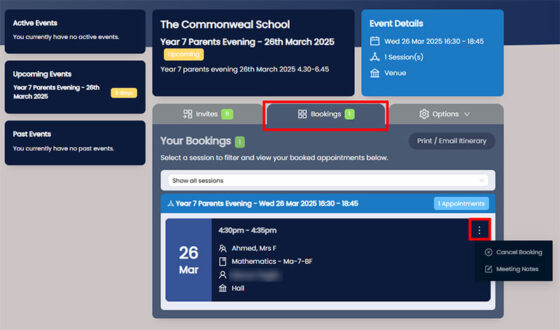
- Within the Bookings Tab, clicking the ‘Print/Email Itinerary’ button you can also Print or Email the list of bookings made for your reference.
Step 6: Logging back in for Parents Evening
Click the link below to log back into your account and view/manage your bookings.
https://parents.events.schoolbooking.com/login